![64d9e16fc8e3963295162d90_logo.svg]](https://help.confidentlims.com/hubfs/64d9e16fc8e3963295162d90_logo.svg)
To create a new Test Package
- Navigate to Settings → Laboratory → Menu
- Select the Add New Package button

- Fill out all of the necessary test package details
- Use the Sample Matrix Categories search bar to select the applicable sample industries, matrix categories, & matrix types. Multiple industries and product categories can be assigned for a test package
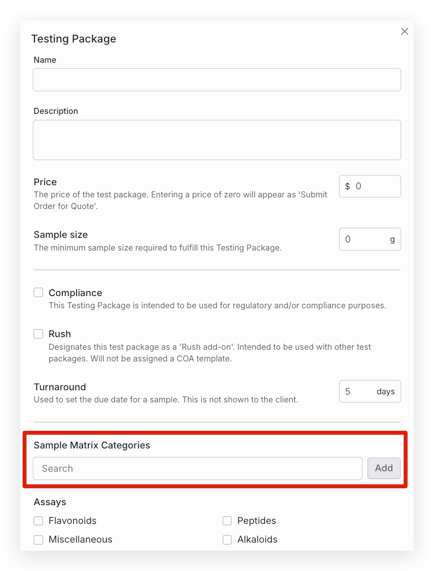
- Select the applicable Assays for the test package
- Select whether the package should be Published or Unpublished. Unpublished test packages will only been seen by internal lab users and are not visible to Clients
- Click Save to save the test package to your menu
Note: To configure a "Rush" Test Package Add-on, refer to How do I Configure a "Rush" Test Package Add-On?
To edit a Test Package
- Navigate to Navigate to Settings → Laboratory → Menu
- Find the test package that you would like to edit
- Select Edit in the Actions Column

- Make the desired changes for the test package and click Save
Important Note Regarding Test Packages
Each time you add or modify a test package, Confident needs to manually update the COA template associated with that test package. Because of this, you will not be able to generate a report for a new or revised test package until a COA template is applied. Please note that the COA template updates or new template deployment by Confident may take a few days before the template is reflected in your account. We recommend testing the report template before reporting real client samples for new or updated test packages. Once done testing the template, please share feedback with Confident if updates are needed and we can make updates. This way, we can avoid potential issues with client COAs.