![64d9e16fc8e3963295162d90_logo.svg]](https://help.confidentlims.com/hubfs/64d9e16fc8e3963295162d90_logo.svg)
Labs on the Pro Plan can enter and save fillable form fields according to their congifured Chain of Custody templates. Labs on the Premium Plan can complete Chain of Custody documentation online from intake through signature. Your team and your clients fill in and sign the form directly, so nothing gets printed or re-scanned.
In This Article
- Fillable Fields & Starting the Digital Signature Process
- Adding Digital Signatures
- Sending the Chain of Custody to a Client for Signature
- Tips and Noteworthy Items
Fillable Fields & Starting the Digital Signature Process
- Find the Order you would like to start the fill and sign process for
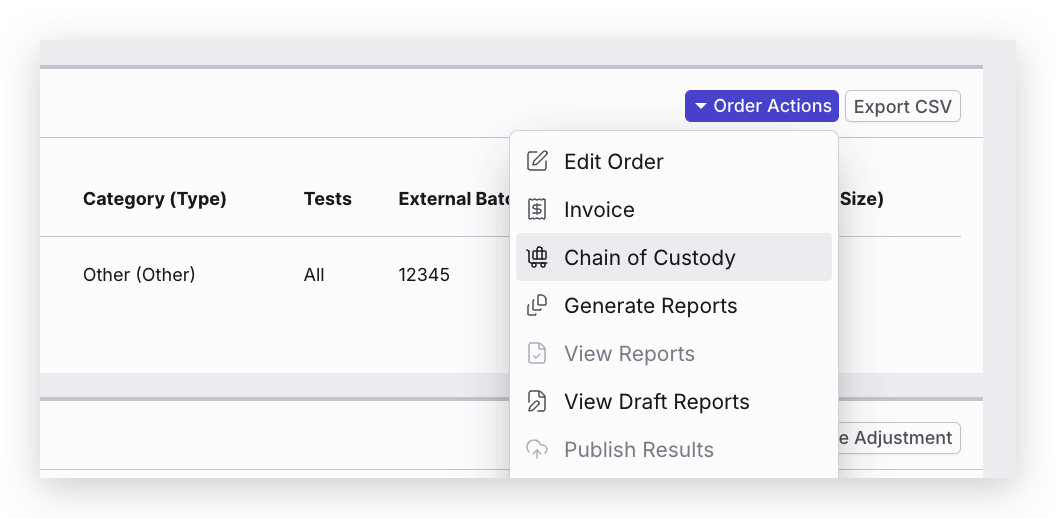
- If in the Order page, select Order Actions and Chain of Custody
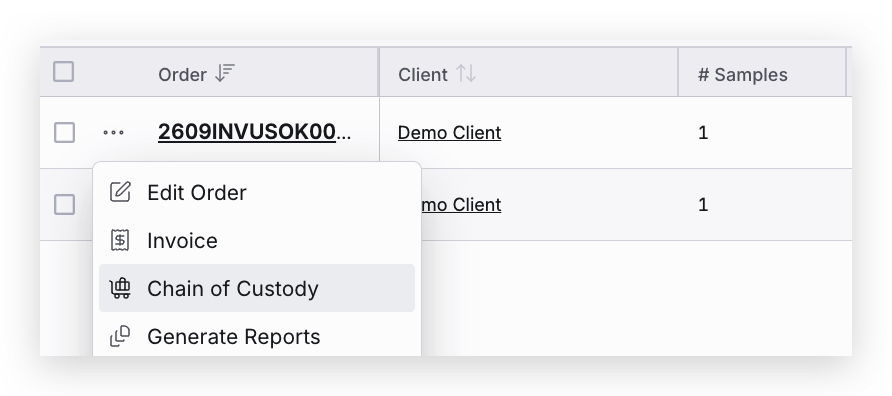
- Alternatively, you can select the three dots next to the Order ID in the Order List and then Chain of Custody
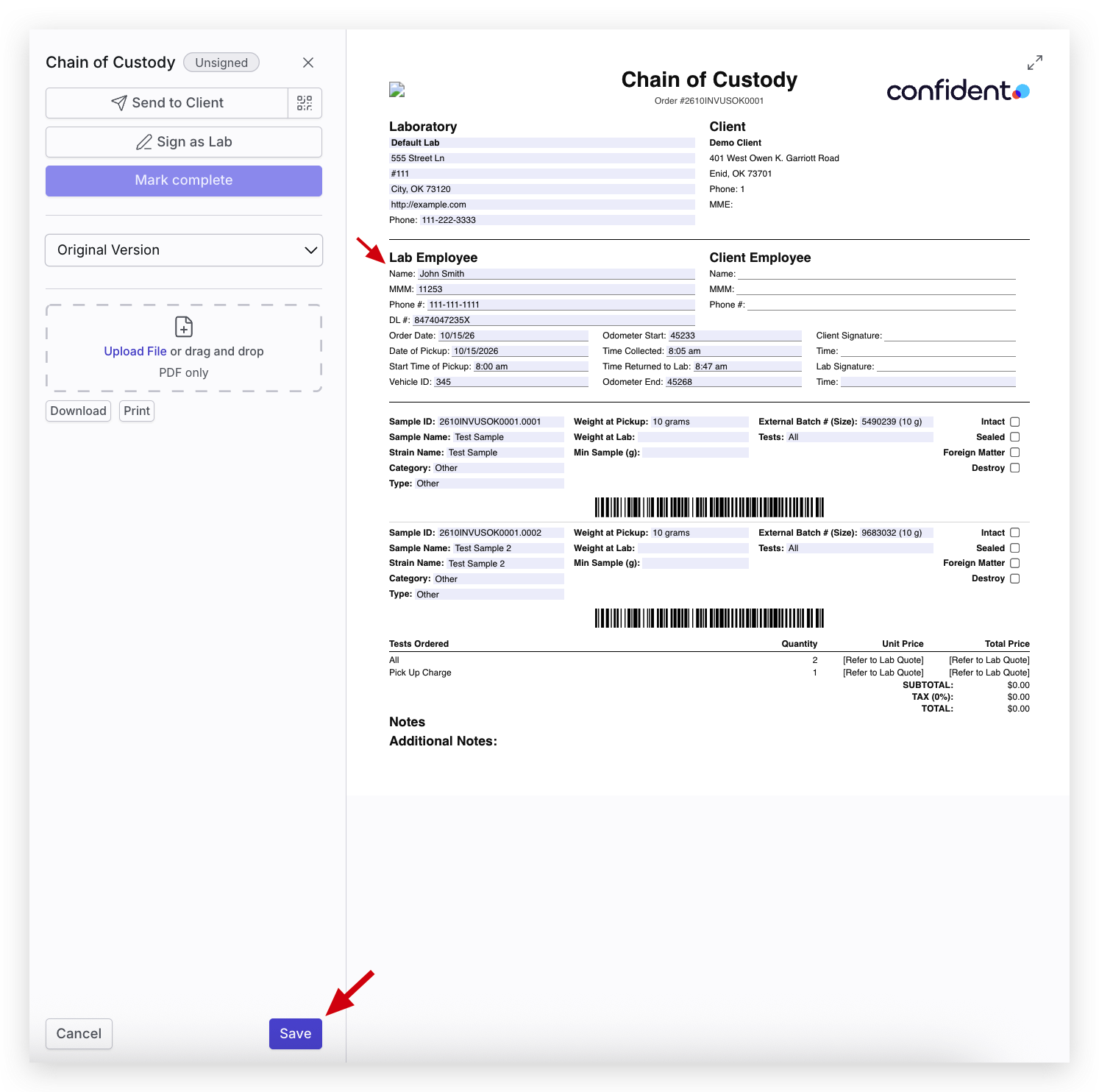
- Fields that are set as fillable by the Lab are highlighted in the Chain of Custody. Enter any necessary information, and select Save at the bottom of the page to save the information entered
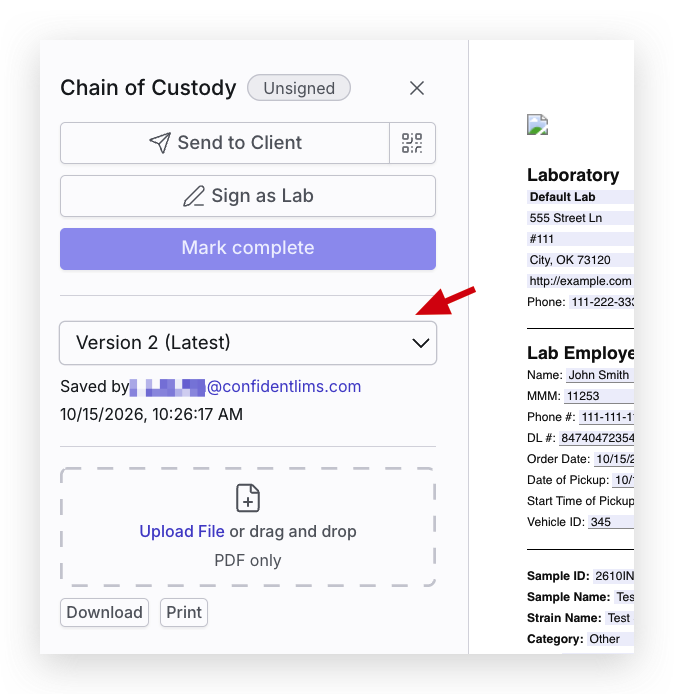
- Each time a Chain of Custody is Saved, the Latest Version and a log of each Version that has been saved will appear in the drop down. Previous versions of the Chain of Custody can be viewed by selecting the Version in the drop down
- Labs on the Pro Plan are able to complete fillable fields and use the Mark Complete button to Complete the chain of custody. The document can then be printed for signing and uploaded using the Upload File box
Adding Digital Signatures
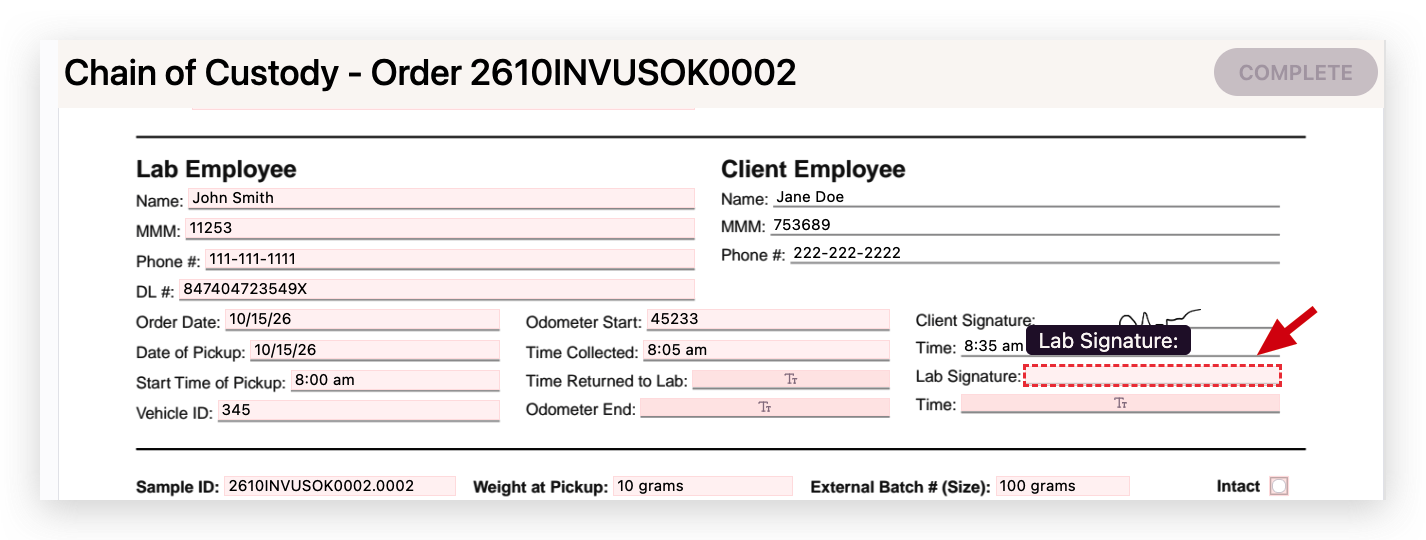
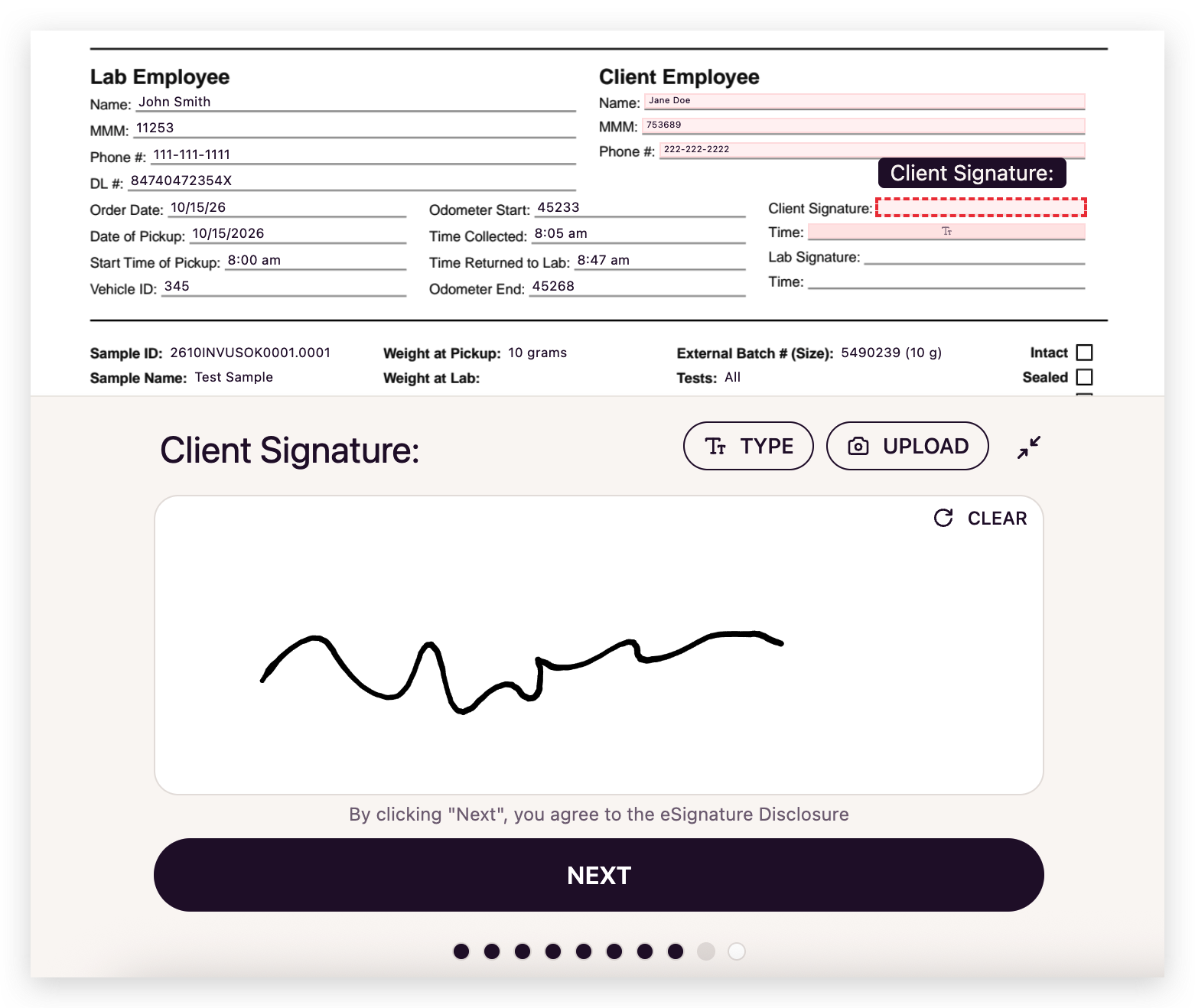
- For Premium Plan subscribers, when you are ready to e-sign the document, select Sign as Lab or Sign As [Role] if you have signature fields configured in the left side panel. Required Signature fields will appear bold in red. Click on the field and apply your signature. If there are other fields that can be completed, the signature page will prompt you to add information for those as well
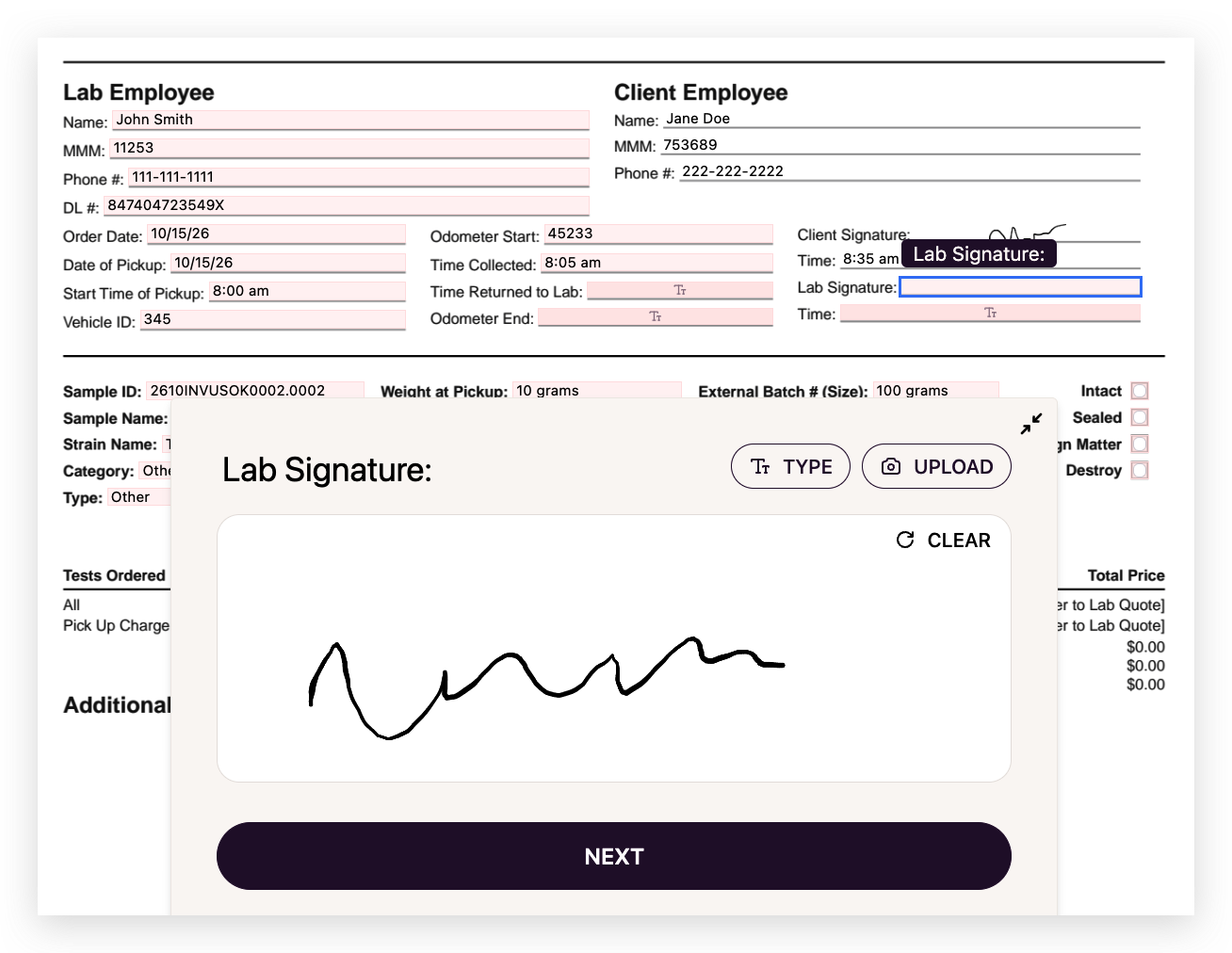
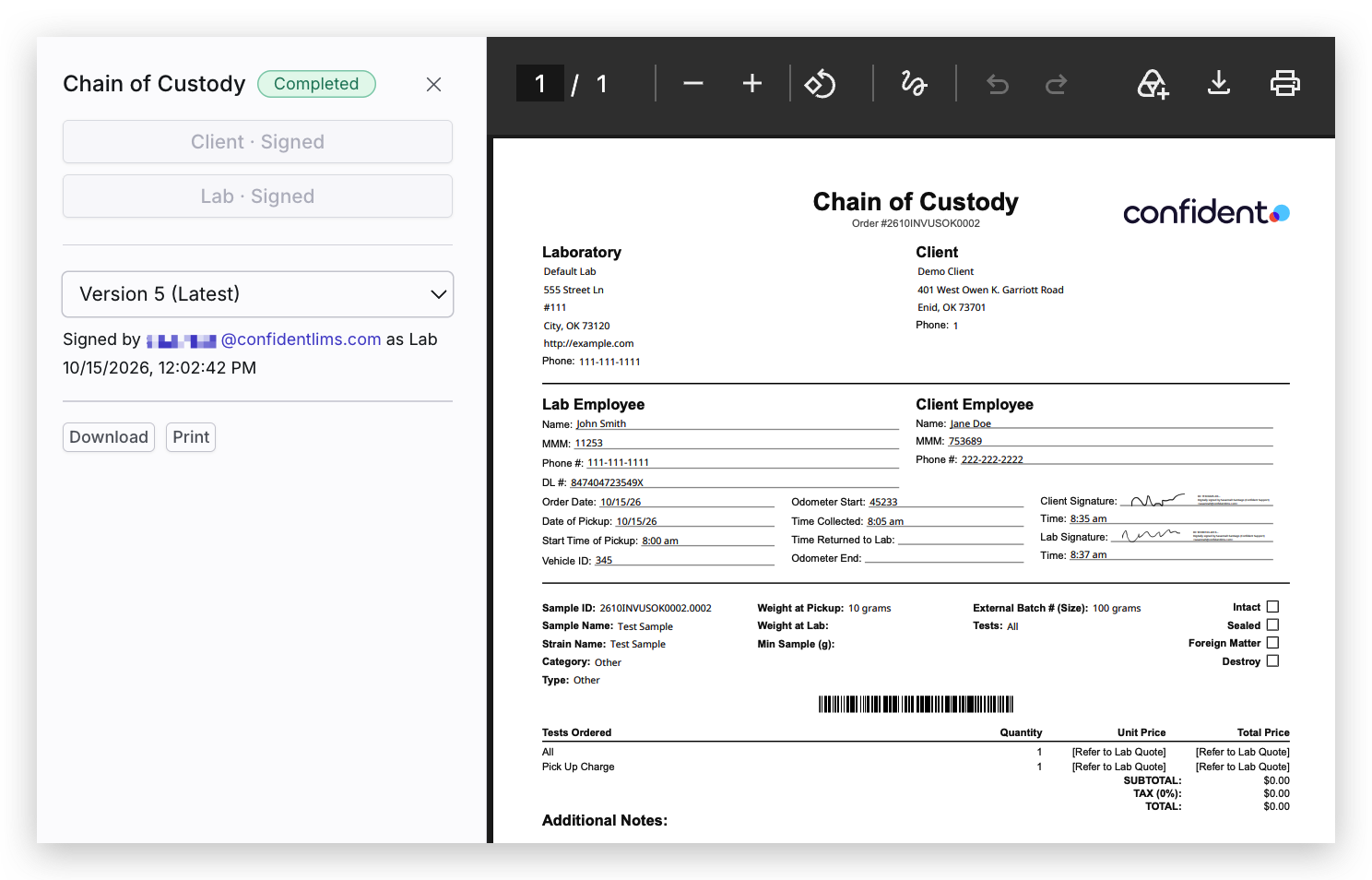
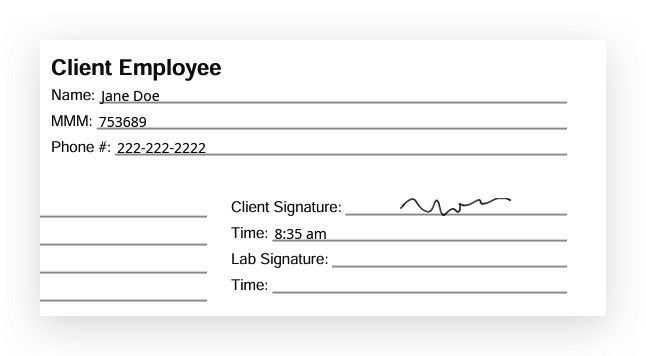
- Once you are finished adding your signature and entering necessary information in fillable fields, Complete signing of the document. Once all parties have signed, the Chain of Custody will show as Completed, and all information with signatures will be captured
- You can Download or Print the completed Chain of Custody by selecting the Download or Print buttons in the left panel
Sending the Chain of Custody to a Client for Signature
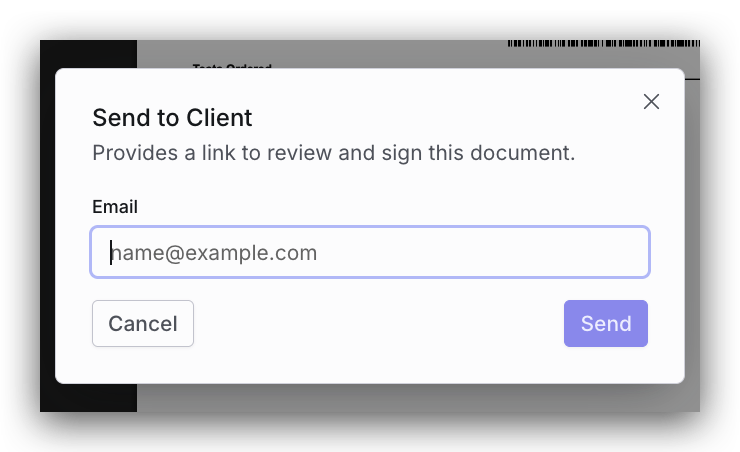
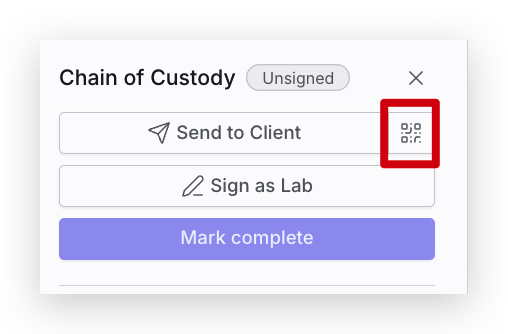
- Labs on the Premium Plan can send documents directly to their Clients for digital signature. To send the Chain of Custody to a Client for digital signature, select the Send to Client or Send to [Client Role] button in the left side panel
- A window will appear for you to enter the signatory's email address for signing. Enter the Client's email and Send
- Alternatively, if you select the QR code icon, the Client can scan this QR code and sign the document on their device or directly on the device you are using
- The Client will be prompted to fill and sign necessary fields. Once they are finished, they can Complete the form and the information entered and signature will be captured. They can also choose to send themselves a copy of the signed document
Tips and Noteworthy Items
- The Latest Version of the Chain of Custody can be downloaded or printed using the buttons on the left side panel. If you would like to download or print a previous version, select the version you would like to download or print in the drop down
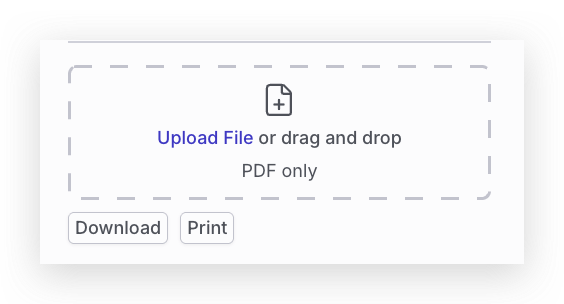
- Scanned or pdf versions of the Chain of Custody can be uploaded in the Upload File box. The uploaded document will save as a new Version of the Chain of Custody
Note: If a pdf is uploaded, fillable fields and e-signing will no longer be available for the document. You are, however, still able to upload additional pdfs as new versions to make any necessary adjustments
For more information on how to edit a chain of custody template and set signature and fillable fields, see How Do I Edit a Chain of Custody Template?
If you have any questions or need additional assistance, please reach out to support@confidentlims.com!