![64d9e16fc8e3963295162d90_logo.svg]](https://help.confidentlims.com/hubfs/64d9e16fc8e3963295162d90_logo.svg)
The Chain of Custody Editor lets your lab build the Chain of Custody (COC) form your workflow actually needs, field by field, from inside Confident. Labs on our Pro and Premium Plans have access to the Chain of Custody editor.
In This Article
- How to View the Current Chain of Custody Template
- How to Build or Edit the Chain of Custody Template
- Tips and Noteworthy Items
How to View the Current Chain of Custody Template
- Navigate to Laboratory -> Settings -> Chain of Custody
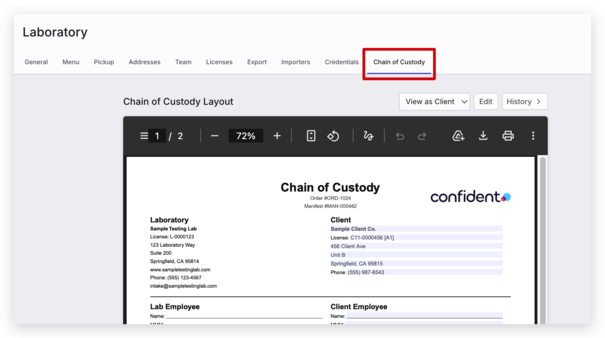
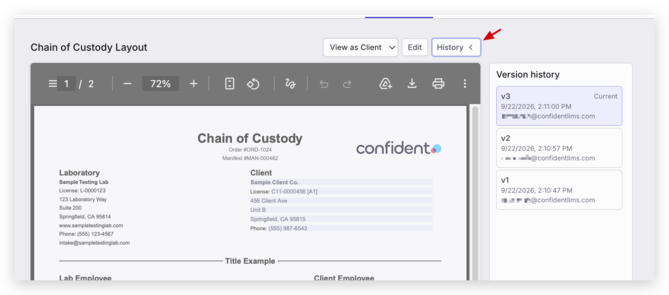
- When in the Chain of Custody tab, your current Chain of Custody Layout (template) will be displayed in a preview version with example field information filled out
- To see the Chain of Custody fields available for entry and signing for each role, select the role you'd like to preview in the 'View as' drop down menu
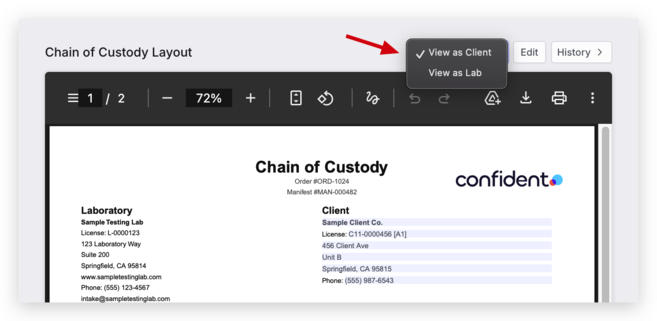
Note: Roles in this drop down will appear based on the fields that are set for Signature and will appear as the name of the Signatory designated. See more on how to edit Chain of Custody fields below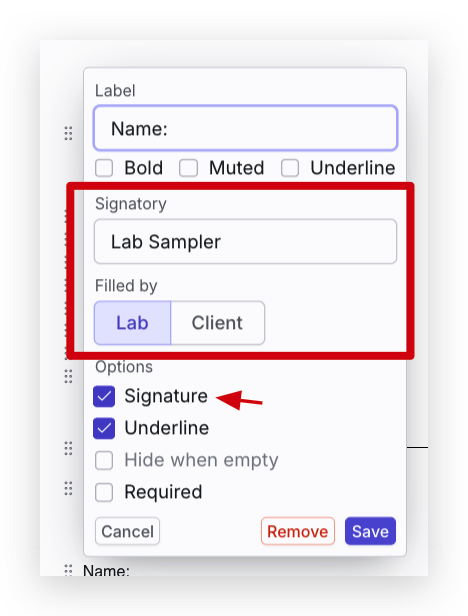
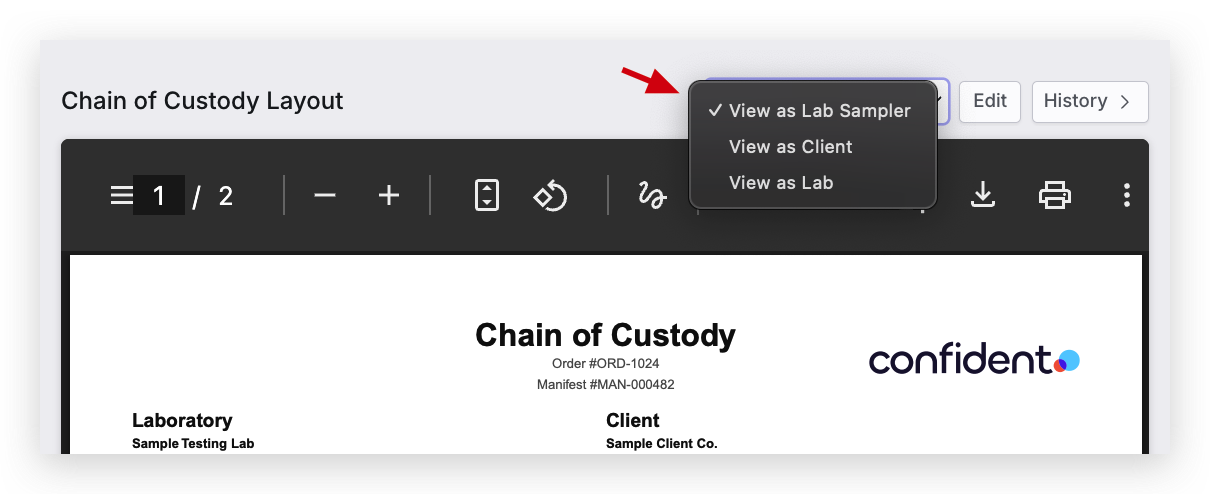
- To view a log of version histories, select the History icon to expand previous versions. You can also restore previous versions of the Chain of Custody through this panel by selecting the version, scrolling down, and selecting the Restore this version button
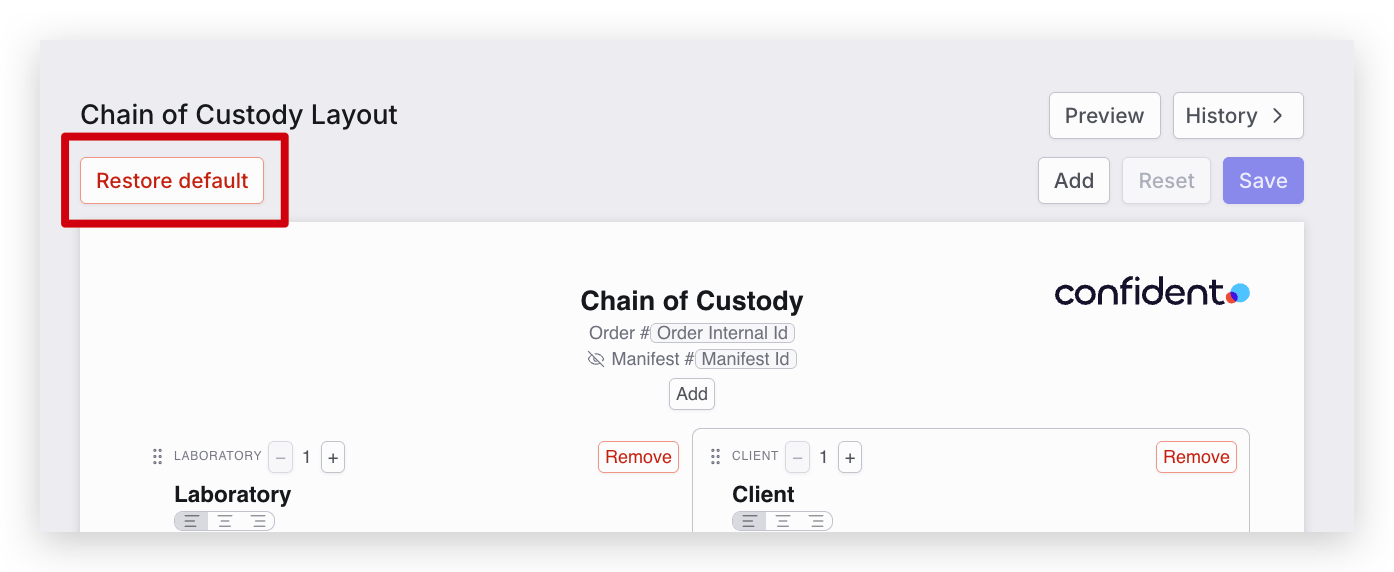
- To restore the default Chain of Custody template and remove all customization, select the Restore default button in the top left
How to Build or Edit the Chain of Custody Template
- Navigate to Laboratory -> Settings -> Chain of Custody
- When in the Chain of Custody tab, select Edit
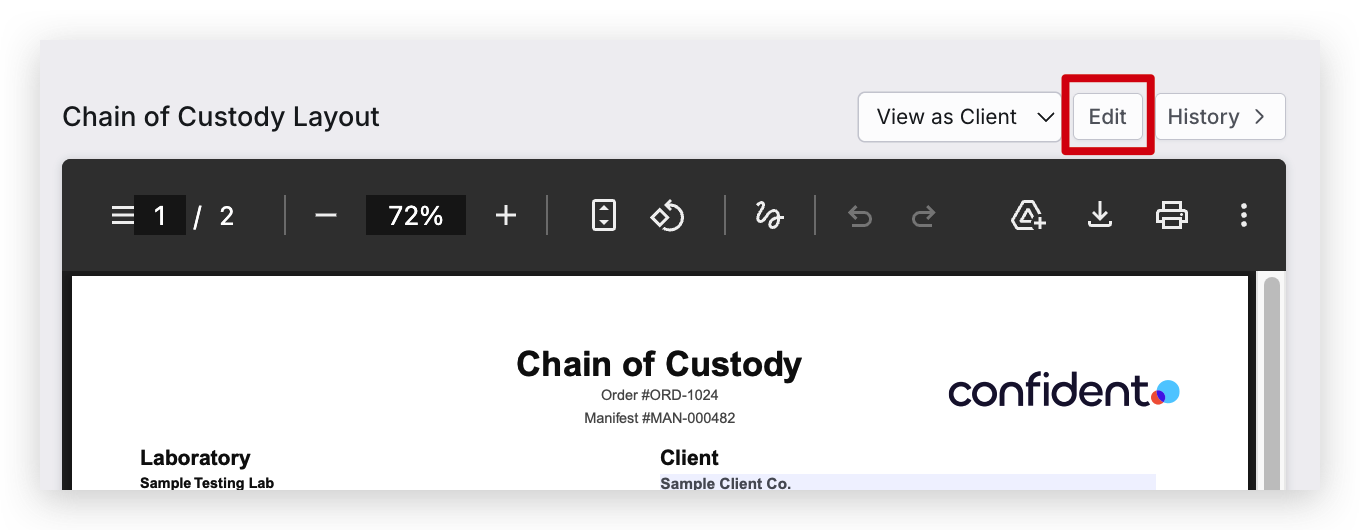
- This will open the Chain of Custody Editor where you can customize, add, remove, or add settings to certain fields or sections on the Chain of Custody
To Add, Edit, or Remove Fields
- Select the Field that you would like to edit
- A menu will appear for that specific field where you can adjust the Label, Display Formatting, and other aspects of the field. Make any necessary updates and select Save
- Label - Update the Label of the field in the form. Use the check boxes below to adjust the display
- Source - Select a field or data source you would like this field to use to automatically pull in information that is stored in the system, such as lab, client, or sample information. Use the check boxes below to adjust the display
- Filled by - Dictates which role is able to fill out or sign the field, for example setting if the field is filled out by the Lab or Client. If N/A is selected, then the field will not be fillable
- Options - Set the field as a signature field to be signed by a designated role, add underline formatting, make the field a required field. If a field pulls information from a source, Hide when empty will hide this field from the display when no information is applicable
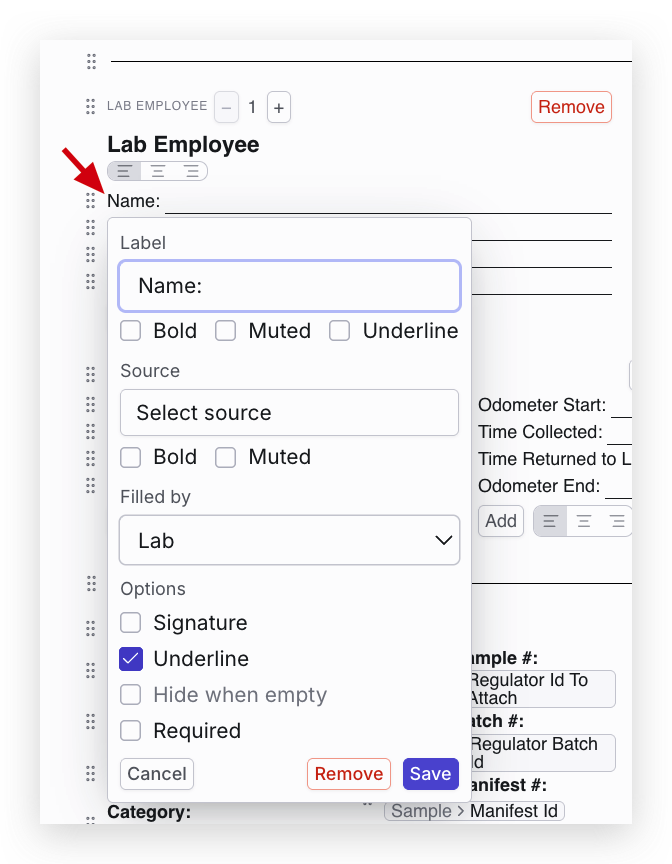
- To remove a field from the template, select the field you would like to remove and the Remove button
- To add a new field, select the Add button and configure the field or checkbox you would like to add to the template
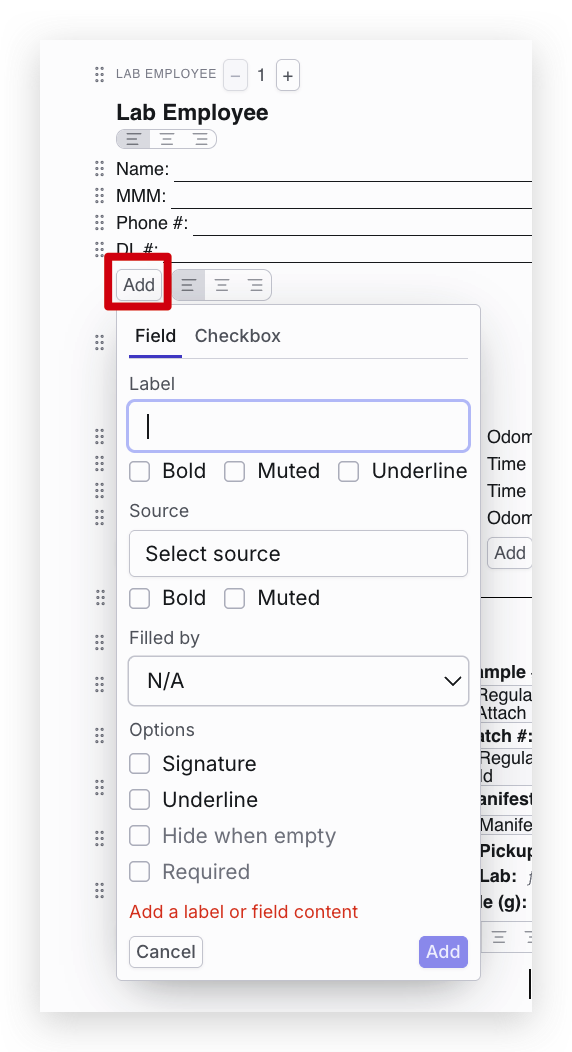
- Once necessary changes are made, select the Save button to save the new version of the template
To Add, Edit, or Remove Sections or Objects
- To add a new section or object to the Chain of Custody template, select Add in the top right and what you would like to add to the template
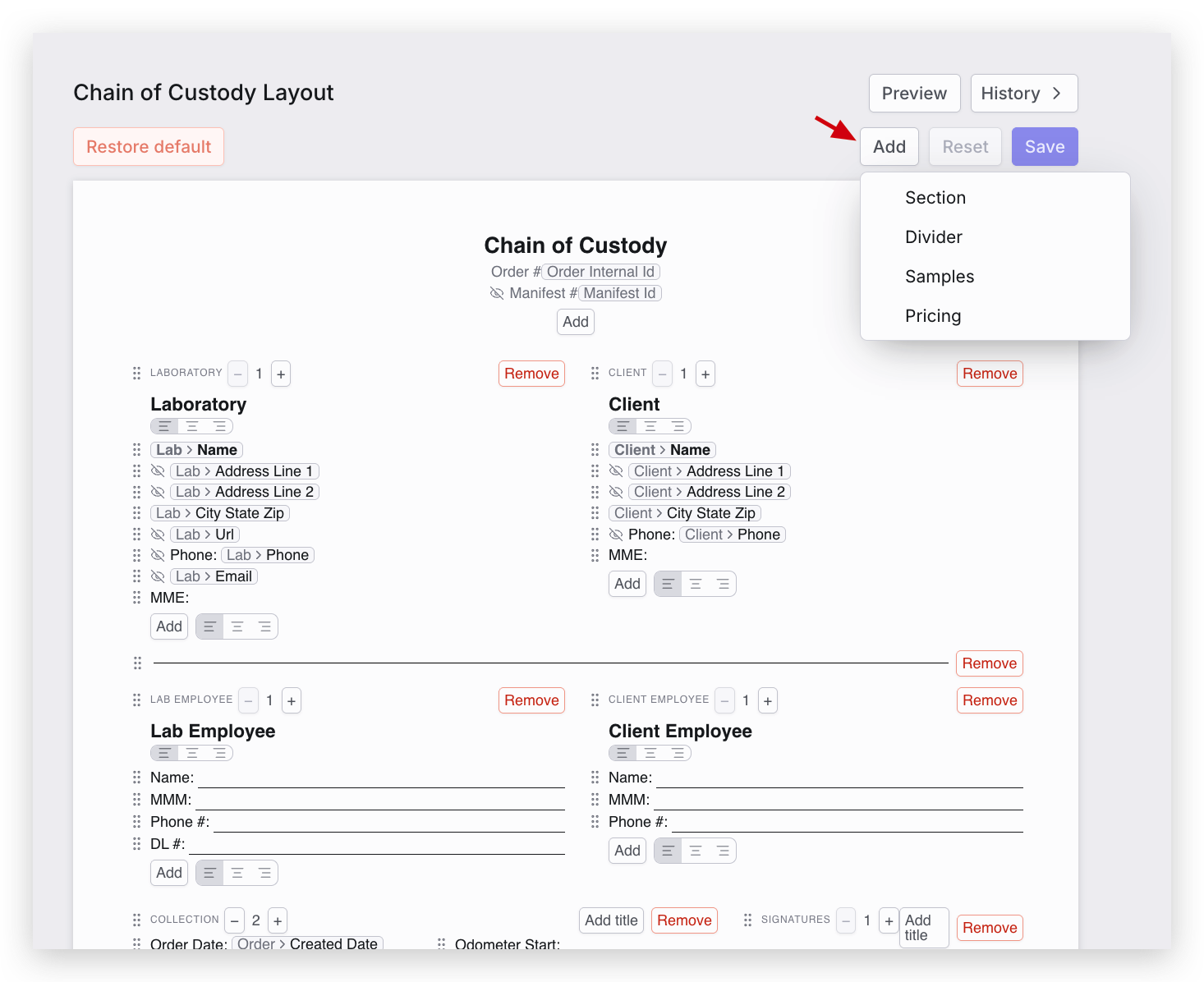
- To add a Label to a Divider, select the divider and add the label and save
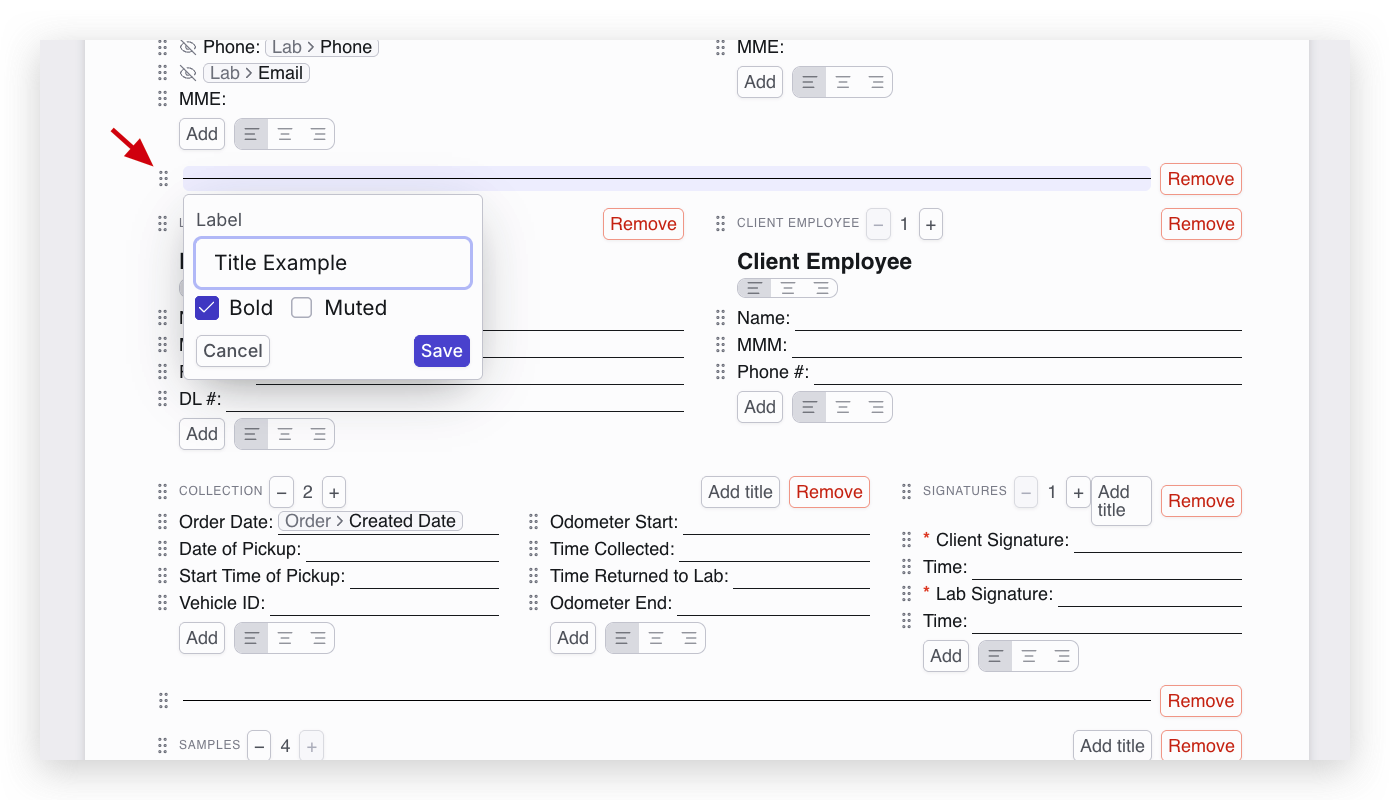
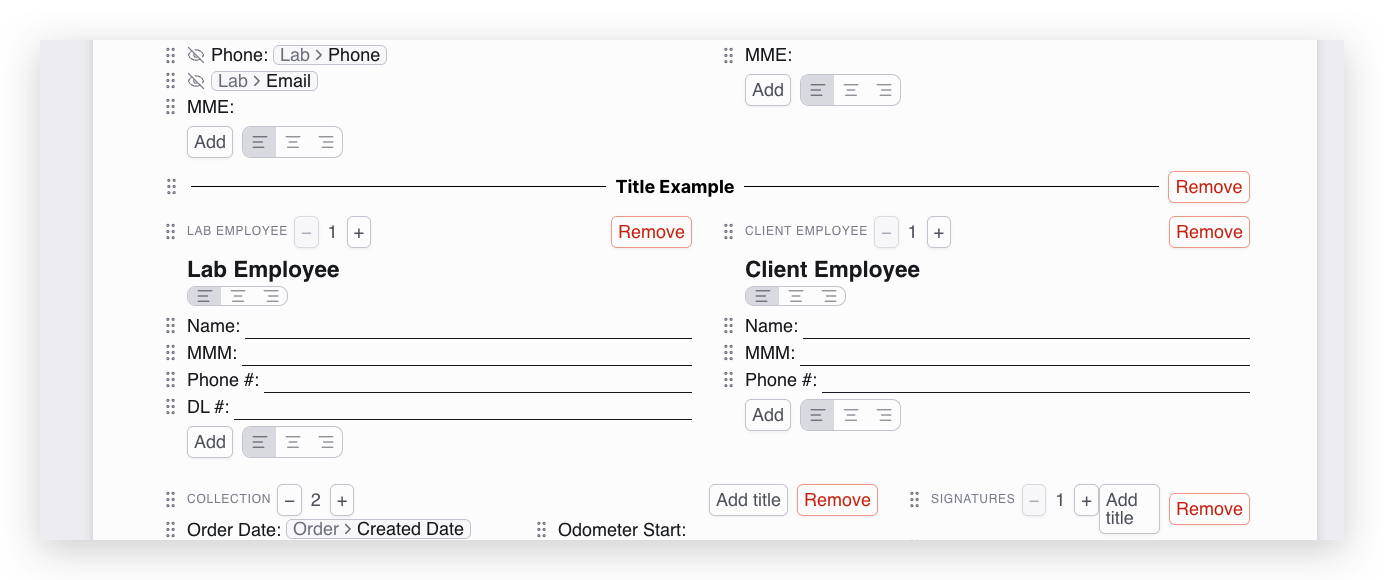
- To remove a section, select the Remove button in the section you would like to remove
- To add or remove columns in a section, select the (+) or (-) icons next to the section category.
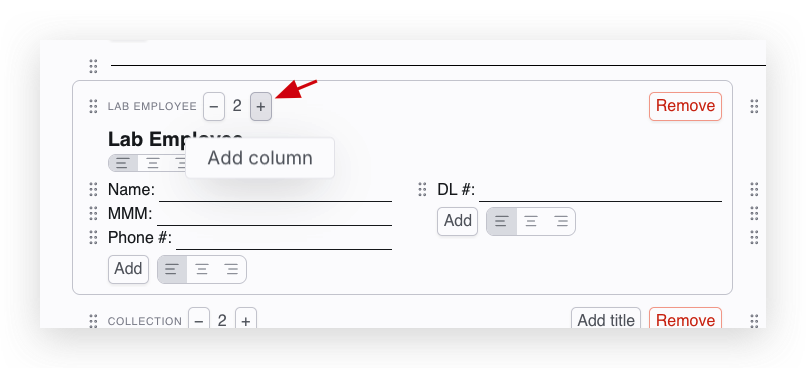
- To reorder sections or fields within a section, simply drag the items to where you would like them to be displayed on the template
- Once necessary changes are made, select the Save button to save the new version of the template
Tips and Noteworthy Items
- When pulling up a Chain of Custody for an order, the Order will use the most current version of the Chain of Custody template
- If any fillable Chain of Custody fields were completed and saved for an order, the Chain of Custody template will remain locked under the template version that was used at the time. Orders can not be updated with the most current version of the template if a new version is created after saving Chain of Custody field information
- If you have custom Sample Intake Fields configured for your account and would like to set these as field sources in the Chain of Custody template, reach out to our support team to see which Extra fields are configured in your account. (When using Source -> Sample -> Extras in the Samples section)
- The f icon next to a Sample field indicates that this field is preconfigured to pull information from a source in the system
- Chain of Custody templates are currently not configurable by Industry, and only one overall template can be configured at this time. If you would like to hide industry specific fields, such as METRC fields from being displayed when not applicable, use the Hide when empty setting
For more information on how to digitally fill and sign a Chain of Custody, see How Do I Digitally Fill & Sign a Chain of Custody?
If you have any questions or need additional assistance, please reach out to support@confidentlims.com!