![64d9e16fc8e3963295162d90_logo.svg]](https://help.confidentlims.com/hubfs/64d9e16fc8e3963295162d90_logo.svg)
To Bulk Update Sample Information
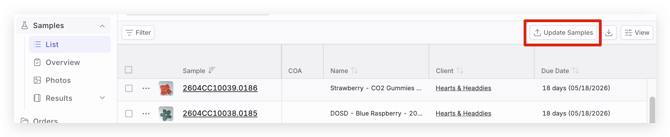
- Navigate to Samples -> List
- In the top right, select the Update Samples button
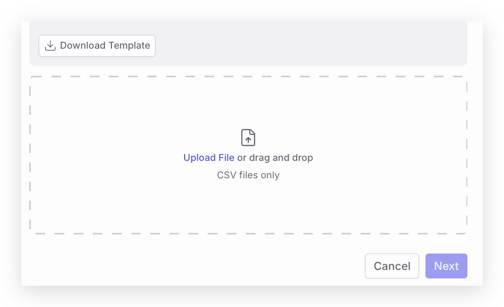
- Download the CSV template
- Fill out the specific Sample IDs and information you would like to update
Note: The CSV template will match the fields configured in your Sample Intake page
- Once the CSV template is complete with the information that you would like to update, drag and drop the file to upload it
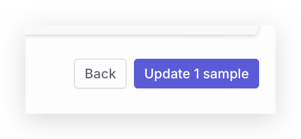
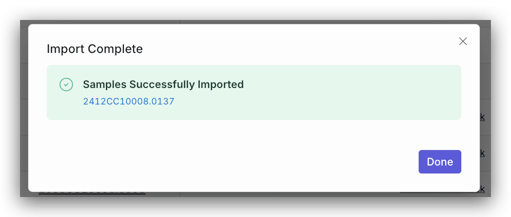
- Review the sample information to be updated in the Preview Import page, and select the Update Sample(s) button to save the updates
This feature can be used by the "owner", "admin", and "users". It is not available for use by "viewers".
If you need additional assistance, please reach out to support@confidentlims.com!