![64d9e16fc8e3963295162d90_logo.svg]](https://help.confidentlims.com/hubfs/64d9e16fc8e3963295162d90_logo.svg)
In This Article
To Create a .csv Export Template
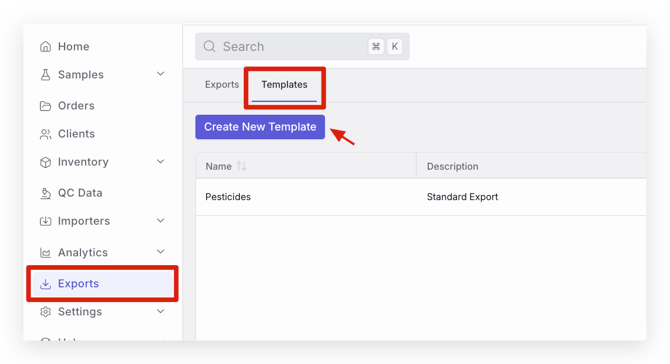
- Navigate to the Exports page
- In the Templates tab, select Create New Template
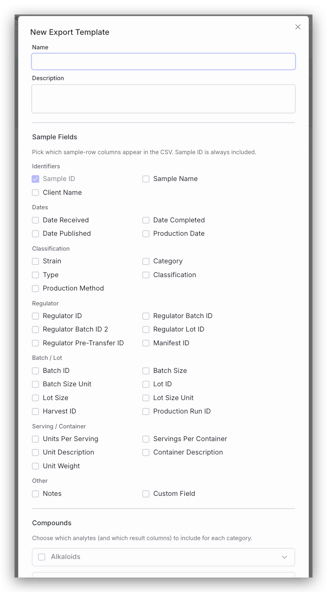
- A window will appear where you can select all information, assays, analytes, and result fields that you would like to include in the export template
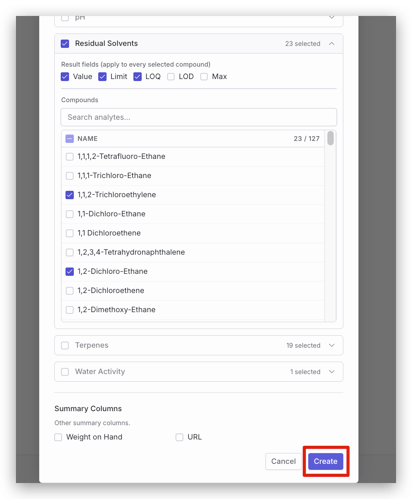
- Add a Name and Description for the template. Select all relevant items you would like to include in the export template and select Create
- Now, when in the Exports tab and selecting Lab Data (.csv) as the Export Type, your configured .csv templates will be available to select when generating an export
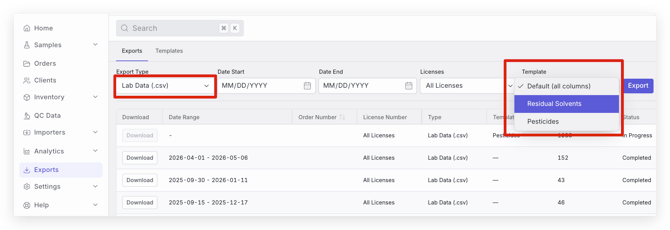
NOTE: Existing templates can be edited or deleted using the icons in the Actions column under the Templates tab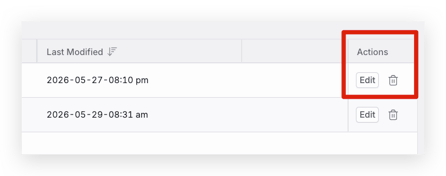
To Export Reports and Lab Data
-
Navigate to the Exports page
-
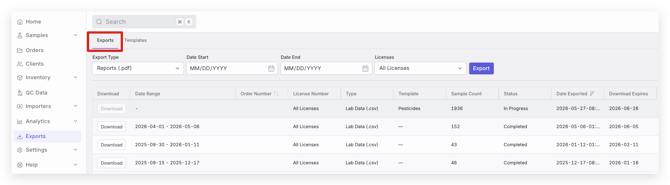
In the Exports tab, use the drop-down box to select Reports (.pdf) or Lab Data (.csv)
-
Select the Start date, End date, License (if applicable), and Template (if applicable)
-
Select Export
-
Once the report is generated, you can download the report by clicking the download button in the table
To Export a Specific Order
Orders can be exported either in the Orders List page or in the individual Order page
-
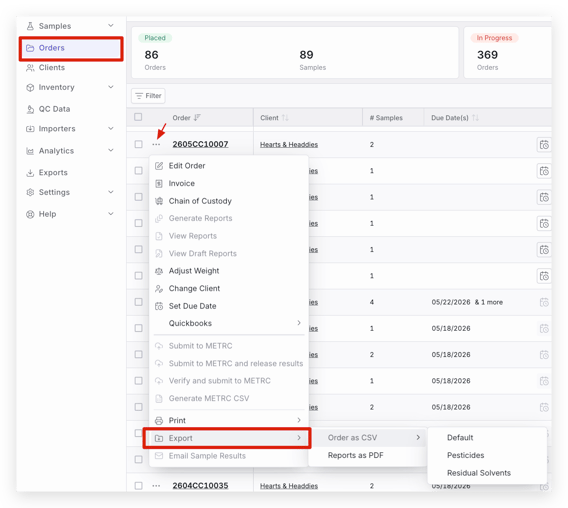
To export from the Orders List page, find the Order that you would like to export
-
Select the three dots next to the Order ID and Export
-
To export from the individual Order page, find the Order you would like to export and go to the Order page
-
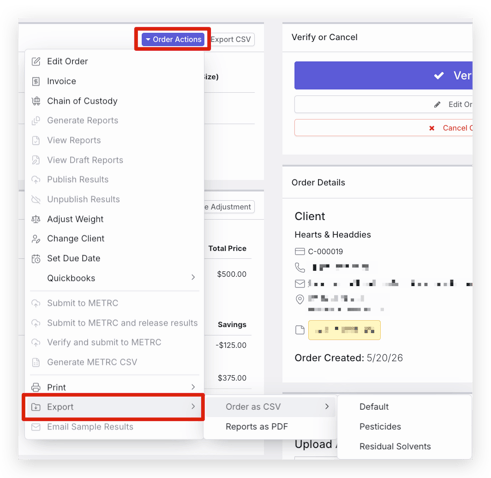
Under Order Actions, select Export