![64d9e16fc8e3963295162d90_logo.svg]](https://help.confidentlims.com/hubfs/64d9e16fc8e3963295162d90_logo.svg)
To view a draft for a single sample
-
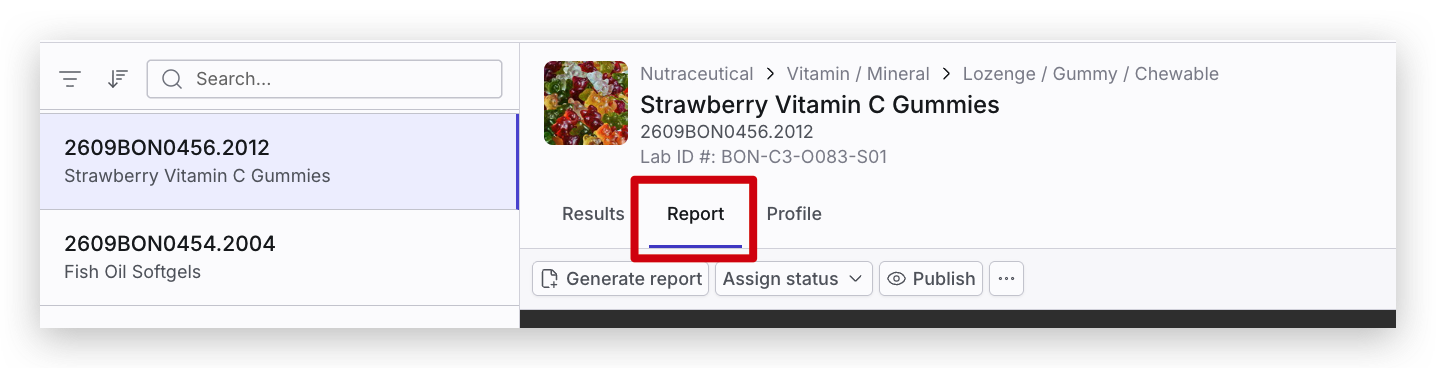
Once you’ve created a Report in LIMS, you can view the Draft Report by clicking Report tab in the sample page
-
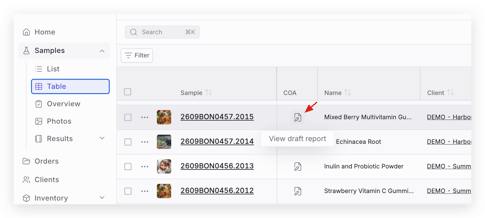
Alternatively, if you are in the Samples -> Table, find the Sample you want, and click the View Draft Report icon under the COA column
NOTE: To learn how to find a specific Sample, see How do I find a Sample in Confident LIMS?
To view historical draft reports for a sample
- Navigate to the Sample and Report tab to view the most current draft
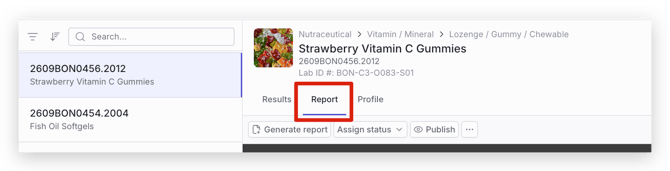
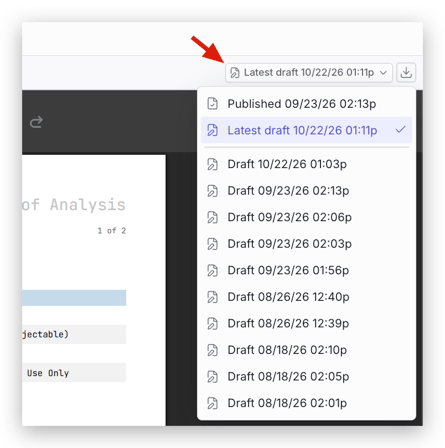
- On the top right when viewing the current draft, select the Latest draft drop down to see all historical draft reports. You are able to select which draft report you would like to view in this drop down.
To view all drafts for an Order
-
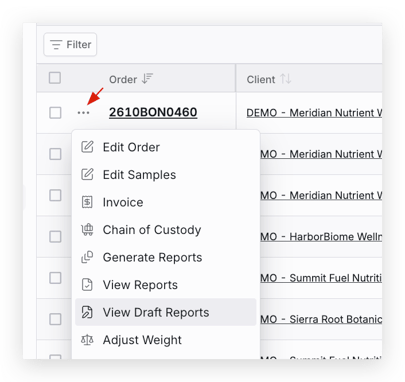
Once you’ve created your Reports, find the Order or Sample that you want to view in the Orders or Samples → List page
NOTE: To learn how to find your Order, see How do I find an Order in Confident LIMS?
- Select the three dots next to the Order, and View Draft Reports
-
Alternatively, in the Order page under Order Actions, select View Draft Reports
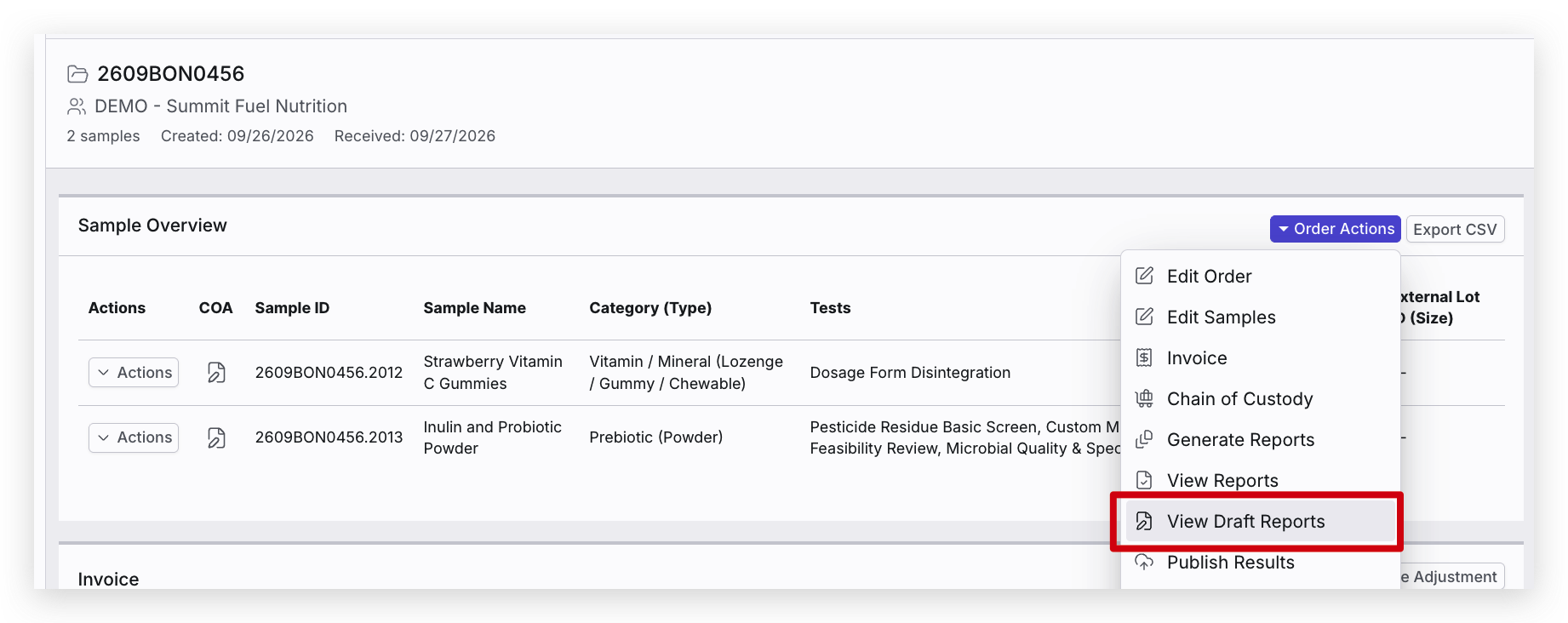
- Windows will open with the draft reports for that order. If there are multiple Samples in the Order, you can toggle between Reports in one window by selecting Other Reports at the top of the screen. You can also use the arrows to toggle between reports in that Order.